The other 5 heuristics make you a usability expert
In this issue we cover the rest of the usability heuristics, and start with a fun experiment.
Take your friend's phone and shuffle the apps placement like this.
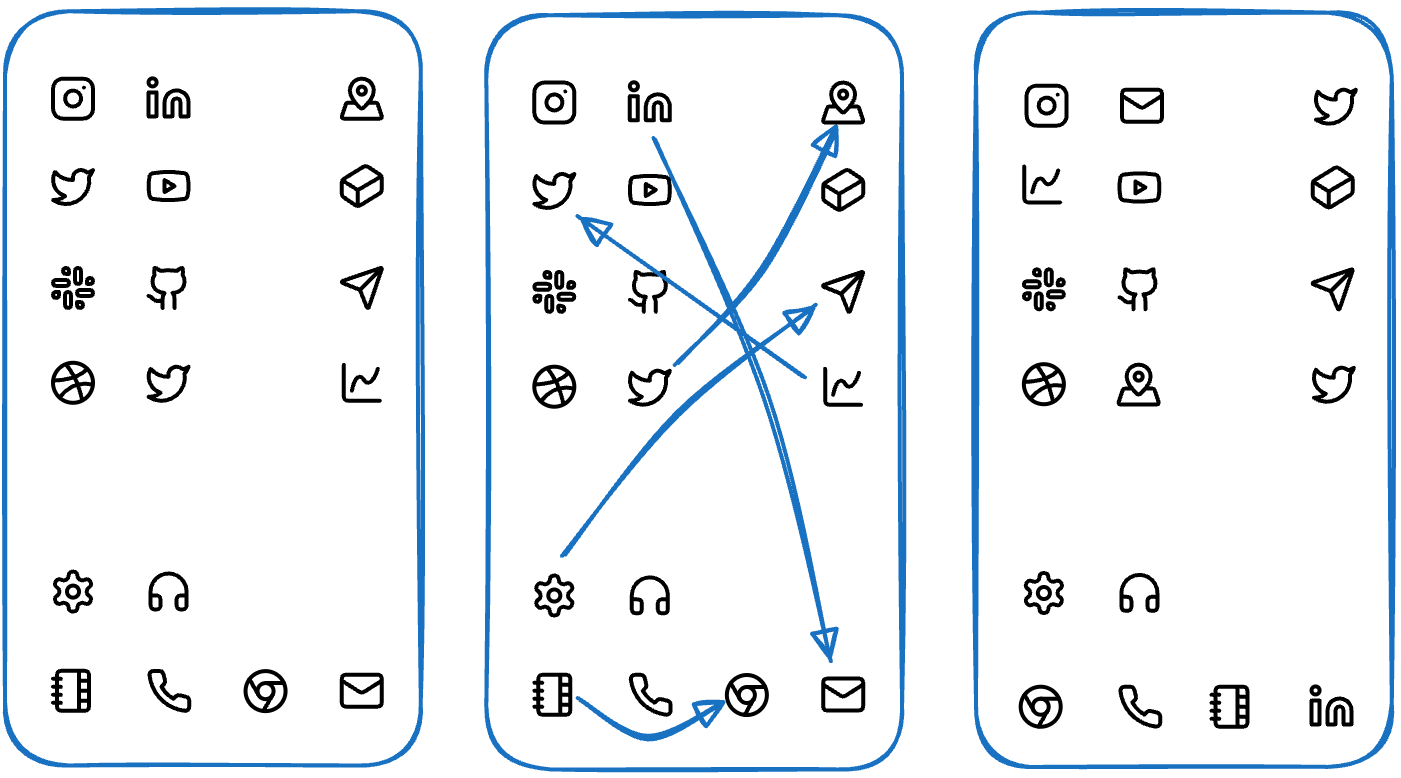
All icons are there. All labels are there. But you might be better off staying away from your friend for a while. That is the first heuristic.
Recognition Rather than Recall
Minimize the user's memory load by making elements, actions, and options visible. The user should not have to remember information from one part of the interface to another. Information required to use the design (for example field labels or menu items) should be visible or easily retrievable when needed.
We often remember things subconsciously. The most obvious example is our mobile phones. We arrange the apps we use in a specific order on specific screens.
Nobody remembers exactly where an app is, but as soon as we take our phone, we can instantly find it.
Flexibility and Efficiency of Use
Shortcuts, hidden from novice users, may speed up interaction for expert users so the design can support both inexperienced and experienced users. Allow users to tailor frequent actions.
This heuristic tells us that it is usually a good idea to give users an option to set up how they want to work with your app.
For example:
- Letting users customize keyboard shortcuts.
- Option to customize dashboard widgets.
- Option to change color schemes and other settings in text editors.
- Theming options (dark/light/focus modes).
Aesthetic and Minimal Design
Interfaces should not contain information that is irrelevant or rarely needed. Every extra unit of information in an interface competes with the relevant units of information and diminishes their relative visibility.
The goal is to make sure every element on the screen has a clear purpose and does not add unnecessary complexity.
Remove unnecessary buttons, texts, or other elements that do not directly help users achieve their goals.
Help Users Recognize, Diagnose, and Recover from Errors
Error messages should be expressed in plain language (no error codes), precisely indicate the problem, and constructively suggest a solution.
Not:
- "Error Code 502: Bad Gateway"
- "Connection Timeout Error"
- "Authentication failed"
But:
- "We are having trouble connecting to the server. Try refreshing the page or come back later."
- "We could not reach the server. Please check your internet connection or try again later."
- "Incorrect email or password. Did you forget your password?"
Help and Documentation
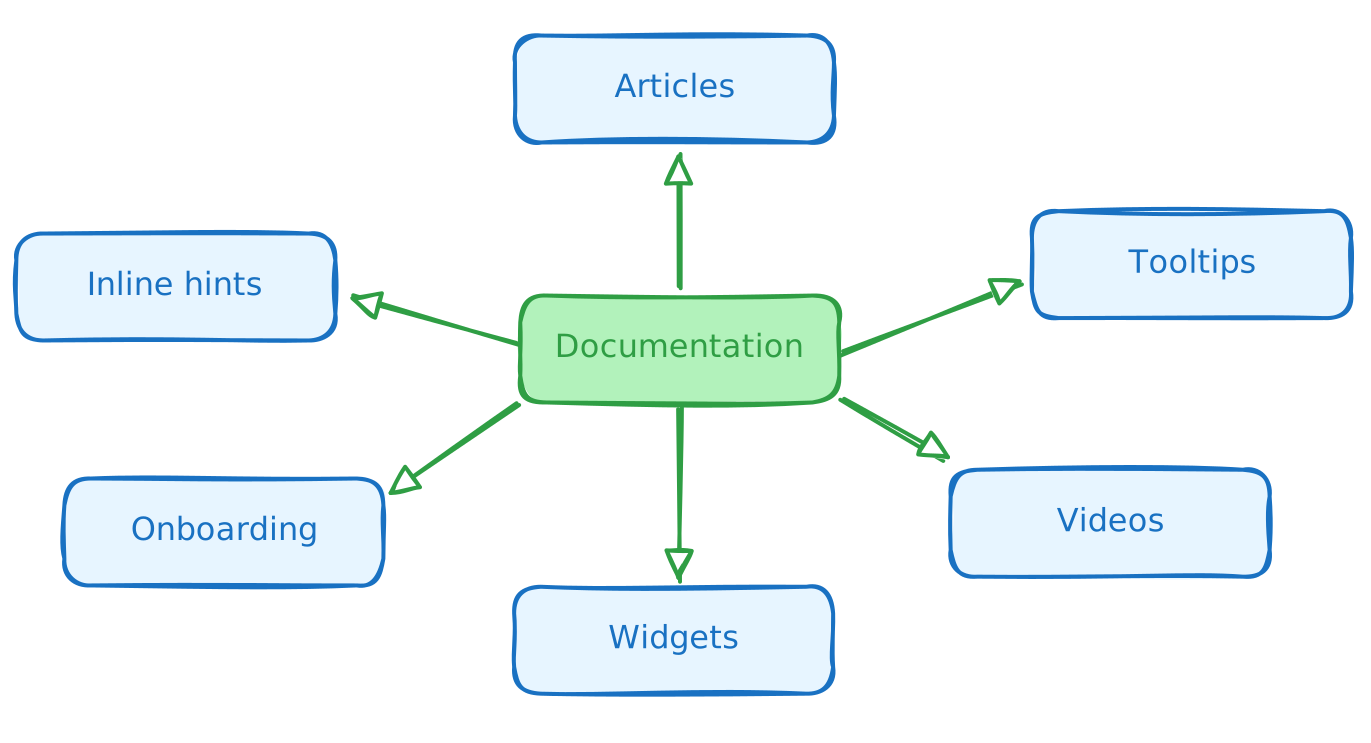
It is best if an interface does not need additional explanation. However, it may be necessary to provide documentation to help users understand how to complete their tasks.
We should try to make the interface self-explanatory so users do not have to read docs or send support requests.
But it is not always possible. Some systems are complex. Some involve a lot of legal information, for example in banking apps. The goal is to make documentation easy to search and show the right hints at the right place and time.
You can learn much more in my recent course. The Black Friday deal is already there.